Follow the steps below to configure Quick Menu(*) in ScanSnap Home so that a list of applications appears after scanning.
*:
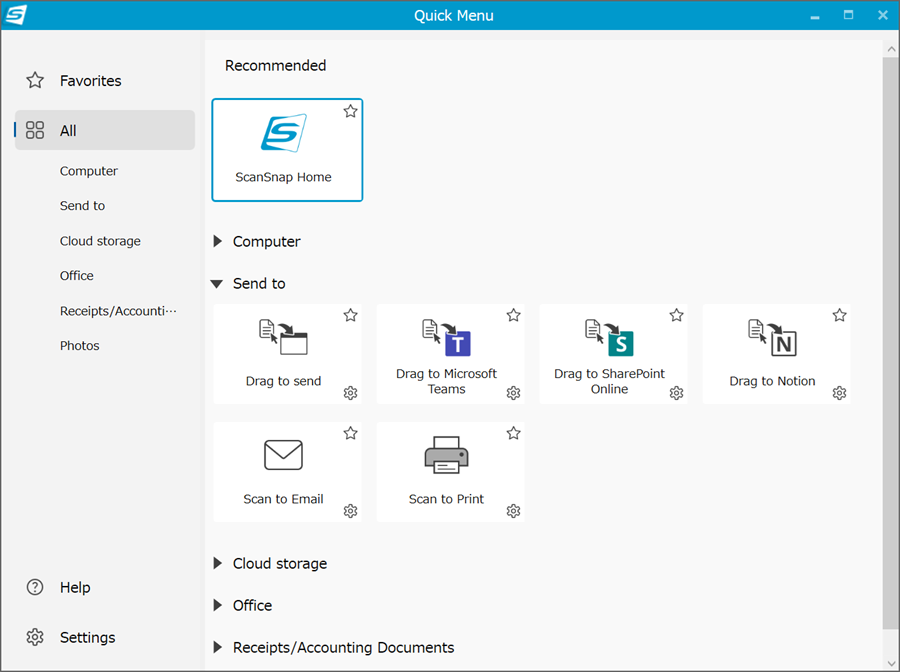
Quick Menu displays the following screen to allow you to select an application to perform a particular action after scanning. Quick Menu requires ScanSnap Home 1.7.0 or later.
[Steps]
Note:
The display windows shown in the following procedure are for Windows. The procedure is the same for macOS.
There is more than one way to configure the Quick Menu. Select the method that applies to you below.
A Quick Menu scan profile may already appear in the scan window or on the touch panel.
Creating a new profile that runs Quick Menu
- Start ScanSnap Home
.
For details, see this page.
- Click the [Open scan window] button to display the [ScanSnap Home - Scan] window.
-
Click the [Add profiles] button to open the "Add New Profile" window.
The screen may differ depending on your scanner model.
- Select [Quick Menu] and click the [Add] button.
Modifying an existing profile to use Quick Menu
- Start ScanSnap Home
For details, see this page.
- Click the [Open scan window] button to display the [ScanSnap Home - Scan] window.
- Click the [Edit profiles] button to open the [Edit profiles] window,
The screen may differ depending on your scanner model.
- Select the profile whose settings you want to modify.
In this example, select [ScanSnap Home].
In the [Application] setting, select [Quick Menu], and then click the [Save] button.